

Picking the right editor will either help or hurt your workflow as much as what you are doing with it (retouching a product photo, restoring an older scan, creating digital art from scratch). Just because there are many raster graphics software programs does not mean they were created equally.
From completely free, online raster editors to very expensive, professional monthly subscription software, the biggest problem you have is not figuring out how to find a raster program, but rather deciding which raster program will fit your budget, platform, and what type of edits you perform most frequently.
Quick Answer:
Currently, the top raster graphics software programs are: Photoshop, Affinity Photo, GIMP, Pixelmator Pro, Krita, Paint.NET, Corel Painter, and Photopea. While each has been developed for somewhat different types of jobs, a couple of them are free alternatives to meet your everyday edit needs without the cost.
What Is Raster Graphics Software?
Raster graphics software provides the ability to produce, display, or modify images created by pixels (photographs, artwork scans, and digital paintings) using an array of pixels in a fixed grid; each pixel contains a specific color value.
The photorealism of raster file types can be attributed to this type of construction; however, it will degrade the sharpness as they are enlarged beyond their original size.
There is no other rationale for having raster image editing programs: being able to manipulate individual pixels as part of your retouching, color correcting, and creating detailed illustrations, all of which cannot be accomplished with a vector tool.
Pixifyo Tip: The quickest way to check if you will have to use raster software at all, is by checking your file extension. Suppose your image is an .AI, or an .EPS (vector) or an .SVG (vector), then you will need vector software. Raster format images include .JPG, .PNG, .GIF, .TIFF and .BMP.
Also Read: Detailed Guide about Poster Sizes: Dimension, Uses, Impact, Benefits and Criteria
Best Raster Graphics Software List
Here are eight raster graphics software programs worth considering, compared side by side and then broken down individually.
1. Photoshop
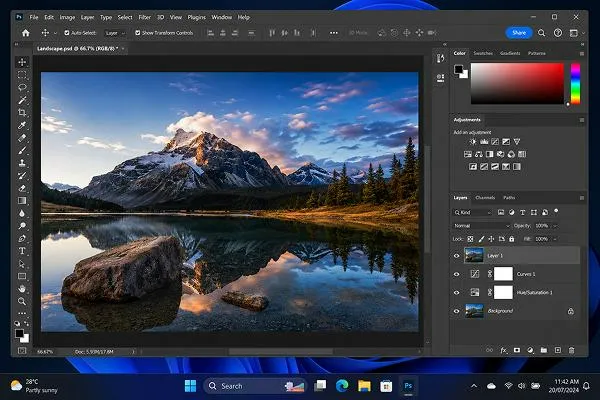
Professional users who need all of their graphics editing tools available at once, or those with a large budget, use Photoshop as their primary raster graphics editor software. While it does everything from photo editing to digital painting, animation, and graphic design, it also has an unlimited number of layers and masks that can be added on top of each other.
Price: From ~$9.99/month (Lightroom); higher for full Creative Cloud access
| Pros | Cons |
|
|
How It Compares: While there are some cheaper alternatives available, if budget is no issue and users plan on performing detailed edits on photos and graphics, then Photoshop is going to have more features than most other raster programs as well as updated versions.
2. Affinity Photo
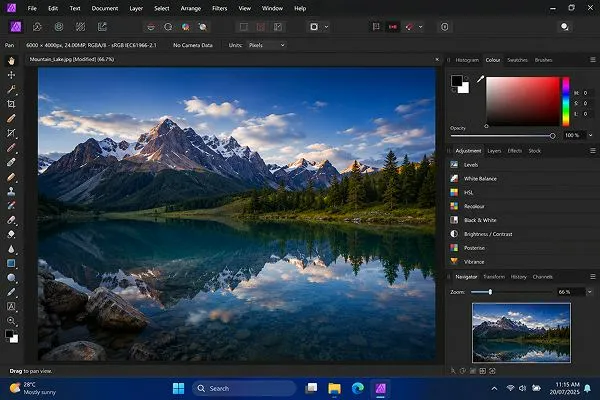
There are many reasons why Affinity Photo is probably the most popular choice when comparing it to Adobe Photoshop. It has features that are similar to those in Photoshop (layer-based, non-destructive) but does not require an ongoing subscription fee.
Price: $34.99 (Mac/Windows), $9.29 (iPad), or $82.99 for all platforms, one-time fee
| Pros | Cons |
|
|
How It Compares: If you want to edit images using Photoshop-level capabilities but do not want to pay a monthly subscription, then Affinity Photo will be your best option from this group of raster graphics editors.
3. GIMP
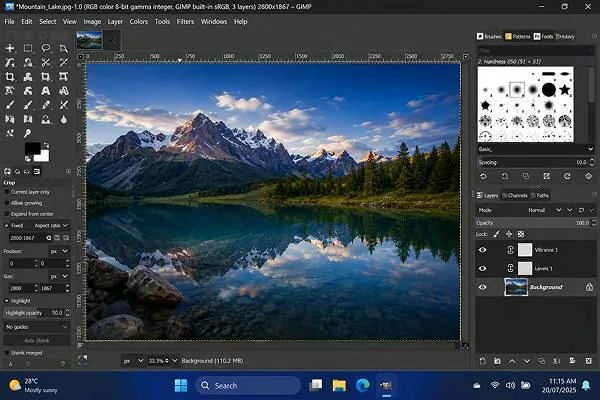
GIMP (GNU Image Manipulation Program) is an open-source raster image editing tool that is free to use with Windows, Mac, and Linux. The fact that GIMP’s source code is in the public domain means you are able to view its code, add to it, and modify it.
Price: Free
| Pros | Cons |
|
|
How It Compares: GIMP is the most powerful of all the free and open-source raster image editors.
4. Pixelmator Pro
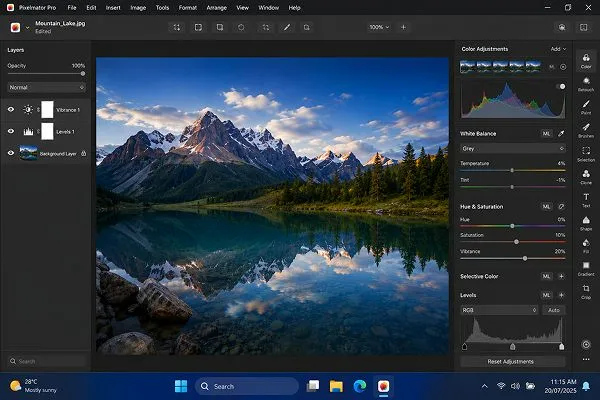
Pixelmator Pro uses artificial intelligence to make some things easier, like enlarging your images and removing unwanted noise, all while giving users a new, very clean interface that was designed with Apple’s operating system (macOS) as its focus.
Price: $49.99, one-time
| Pros | Cons |
|
|
How It Compares: For those who are using a Mac and looking for an affordable alternative to Adobe’s Photoshop, you will find everything you need in Pixelmator Pro, but you can expect to pay much less than Photoshop.
5. Krita
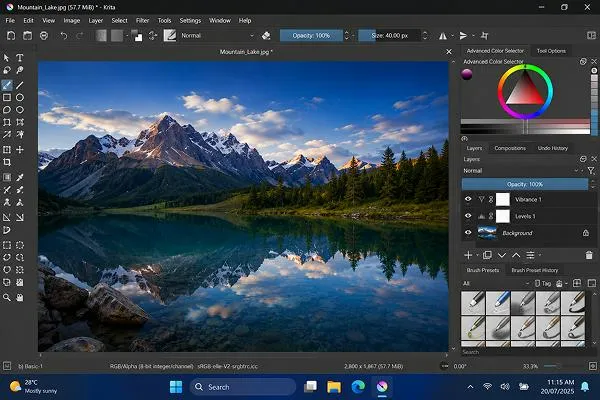
Krita is a free, open-source raster image processing software that was created to be specific to digital painters and illustrators as opposed to photography. Comic artists, concept artists, and animators use Krita because they require a fast brush response from their software more so than photo retouching tools.
Price: Free
| Pros | Cons |
|
|
How It Compares: Krita is one of the top choices for creating original digital art or illustration, but Krita does not provide what you would need if your primary focus is on editing photos.
6. Paint.NET
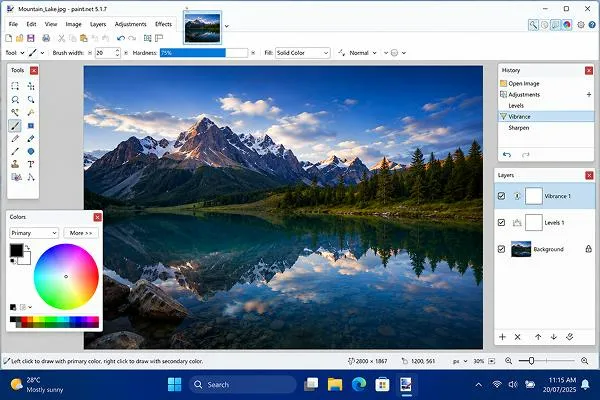
Paint.NET is an easy-to-use raster editor that runs on Windows with a very simple user interface. The goal of Paint.NET was to make a better version than the standard paint program in Windows by adding support for layers and effects but still maintaining simplicity for users.
Price: Free
| Pros | Cons |
|
|
How It Compares: It is ideal for those looking for an alternative to their built-in photo editors.
7. Corel Painter
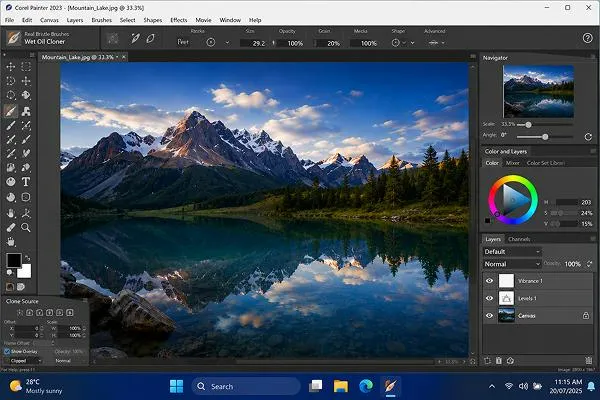
Corel Painter is a raster image-focused digital painting tool that has a large number of brushes available and has many realistic, stylus-friendly features.
The goal of this product is to give illustration/artist/conceptual type users a similar experience in digital paint work as they would when using traditional oil, watercolor, etc. mediums.
Price: $429 for the full program, $229 for an upgrade, or $199/year subscription
| Pros | Cons |
|
|
How It Compares: Corel Painter is superior to other applications when you are looking for maximum realism in digital paintings, and you have no financial constraints; its brushstroke depth is very difficult to exceed.
8. Photopea
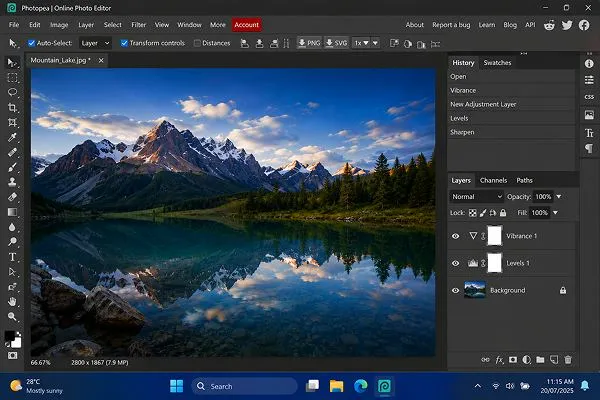
Photopea is a web-based raster graphic editor that is free and uses the same interface and functions as Adobe Photoshop but does not require an installation process.
This makes it great for quick edits on a public or unknown workstation, or if you want to try out raster manipulation before investing money in raster software.
Price: Free (browser-based)
| Pros | Cons |
|
|
How It Compares: Photopea is the easiest raster image editor to try immediately, ideal for quick edits or anyone unwilling to install new software.
Pixifyo Tip:
Be cautious about choosing the highest-cost raster graphics editor. As long as you’re generally going to be cropping, resampling, and doing basic color corrections on your product images, a free raster editor such as Photopea or Paint.NET will get 90% of the job done.
Free and Open Source Raster Graphics Editors
Although there isn’t one completely free and open-source raster editor available today, GIMP and Krita come as close to being able to be used in place of paid software for the majority of your everyday needs.
The GIMP has a very similar functionality to Photoshop’s offering, including layers, masks, filters, and plugins. This makes it an excellent choice for doing general photo editing at zero cost. Krita is developed primarily for digital painters using brush and animation capabilities, which do not exist in many photo-focused raster editors.
The other options within the free category include Paint.NET (available only for Windows), which will be a good option for you if you want a simple raster editor with little or no learning curve, and PhotoPea (which can run from a browser).
Also Read: How To Fix Overexposed Photos? Methods, Hacks, and Suggestions
How to Choose the Right Raster Program for Your Needs
Before choosing a raster graphics editor, think about the system you’re working on (Windows/Mac), how much money you have available to spend, your experience with the technology, and finally, what will be the bulk of your work.
- Identify what you’re editing most: Photo retouching requires an entirely different set of tools compared to creating new digital art. Try to match the software to your primary activity, not your secondary.
- Check platform compatibility: As mentioned previously, there are some raster editors that only function on either Macs or PCs (Pixelmator Pro = Mac; Paint.NET = PC). Make sure you know that the software will run on your computer before committing.
- Factor in your budget honestly: If you want to save money for the long term, then a one-time purchase, such as Affinity Photo, may be better than a monthly subscription. GIMP is free, so if you are willing to spend your time learning it, then that may be the best option for you.
- Consider the learning curve: Tools are only useful if you will use them. It is better to have a simpler raster program that you open every day than to have a powerful raster editor sitting unused.
Mistakes to Avoid When Picking a Raster Editor
A few frequently made errors are responsible for the majority of frustrations that occur during the selection of raster software.
- Selecting solely based upon cost: While it may be a great deal in terms of cost, the least expensive raster graphics editor is not always a good buy if it does not have the capability to perform the editing tasks needed.
- Ignoring the limitations of platforms: For example, downloading a Mac raster image editor to use on a Windows computer is a frequent and completely avoidable error.
- Overlooking compatibility with file formats: If you will be working collaboratively with other individuals who utilize PSD files, ensure that the raster graphics editor selected will allow for both opening and exporting those same PSD files.
- Not taking advantage of the free trial: Purchasing a raster graphics editor without first trying out its workflow usually results in buyer’s remorse.
- Thinking that having more capabilities produces better results: Many times, having too many capabilities makes a program slower at making simple edits than an easier-to-use, lighter version would.
Also Read: How To Fix Grainy Photos? Methods, Hacks, and Suggestions
Conclusion
The best raster graphics application is not necessarily the one that has the most features, but rather the one that corresponds to the kind of editing you are doing on your preferred platform, at an acceptable cost.
Applications such as Adobe Photoshop and Affinity Photo will be used for professional photography. At the same time, Krita and Corel Painter will serve the needs of digital painters. On the other hand, applications like GIMP, Paint.NET, and Photopea can be used for making regular edits without costing anything.
FAQs
Q1: What is the best raster graphics software overall?
Photoshop will remain the leading choice in professional-grade raster images; however, Affinity Photo is a viable subscription-free option that has nearly identical functionality to Adobe Photoshop.
Q2: Is there a free open source raster graphics editor that would be worth using?
Yes. Both gimp and Krita are free and open source. They can be used to edit your photos, do digital paintings, etc., just about anything you would need from paying for a raster graphics application.
Q3: Which raster program should a beginner start with?
Paint.NET (for Windows) and Photopea (which is browser-based and works on any os) are two very basic, easy-to-use raster applications that have an extremely short learning curve compared to full-featured options such as Adobe Photoshop.
Q4: On which platforms do the following raster graphics editors run?
Adobe Photoshop, Affinity Photo, GIMP, and Corel Painter are available on both Windows and Mac platforms. However, Pixelmator Pro runs exclusively on the Mac, while Paint.NET runs exclusively on Windows.
Q5: How do raster graphic programs for photos and digital painting differ?
Raster graphic programs that focus on photography, such as Adobe Photoshop and Affinity Photo, tend to emphasize retouching and color correction. On the other hand, raster graphic programs that focus on digital painting such as Krita and Corel Painter tend to emphasize their brush engine and how well they respond to styluses.