Introduction
Designing graphics as a beginner? Canva would be best for you; are you a professional? You can use Adobe Illustrator for designing vectors, while trendies can choose Photoshop to edit images or graphics. It offers different features and ways to use, which we will explore in this guide, and decide which one is best for what work and for whom.
Graphic design includes creating a logo for businesses, social media posts, preparing print materials, and building website layouts, which can be done with paid and free tools depending on the quality, budget, experience, what you are creating, and the device you are using.
Let’s get started then……
Quick Picks: Best Graphic Design Apps
| Category | Recommended App | Best For |
| Best Overall For Everyday Design | Canva | Social Posts, Presentations, Marketing Graphics, And Quick Layouts |
| Best Free Vector Design Option | InkScape | Logos, Icons, And Scalable Illustrations |
| Best For Beginners | Canva | Template-Based Design With A Relatively Flexible Learning Curve |
| Best For Mobile Design | Canva Mobile | Creating Graphics And Editing Designs On The Go |
| Best For Professional Image Editing | Adobe Photoshop | Photo Manipulation, Composites, And Image-Based Artwork |
| Best For Professional Vector Design | Adobe Illustrator | Logos, Icons, Illustrations, And Brand Graphics |
| Best For Page Layout | Adobe InDesign | Brochures, Magazines, Reports, And Lengthy Documents |
| Best For Interface Design | Figma | Website Layouts, App Interfaces, And Collaborative Design Work |
| Best For Digital Painting | Krita | Illustration, Painting, And Drawing |
What Are Graphic Design Apps And Who Needs Them?
Graphic design apps are tools you can use to create, edit, and arrange graphics. Whether you want to combine shapes, colors, and text, or create illustrations, photographs, or other elements that can communicate with viewers.
People who need them can be beginners or professional designers who want to design business logos or website graphics, or anything else.
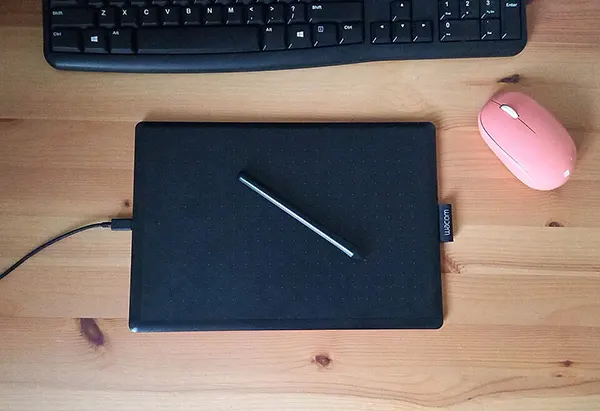
Graphic Design Apps vs. Graphic Design Software
You may think both terms are similar, but it’s not like that, as graphic design apps provide a template-based, drag-and-drop editing style and can be used on your mobile phones and browsers.
Meanwhile, graphic design software indicates a more detailed and flexible design workflow where you have control over drawing, color management, image editing, typography, and production files, which requires a more complete system or desktop.
Vector vs. Raster Apps
Vector design apps use paths, curves, and shapes, and Raster design apps deal with images made of pixels.
| Design type | Best suited to | Example apps |
| Vector Graphics | Logos, Icons, Illustrations | Adobe Illustrator, Inkscape, Affinity Designer, CorelDRAW |
| Raster Graphics | Photos, Image Manipulation, Painting | Adobe Photoshop, Gimp, Krita, Affinity Photo |
| Page Layout | Brochures, Magazines, Reports | Adobe InDesign, Affinity Publisher |
| Interface Design | Websites, Apps, And Prototypes | Figma |
| Template-Based Graphics | Social Posts, Presentations, And Quick Marketing Materials | Canva, Adobe Express |
How We Tested and Ranked These Apps
We are following a set of criteria to rank these after testing each one.
- Ease of use
- Design control
- Output quality
- File compatibility
- Collaboration
- Value
- Commercial usage
What Apps Do Graphic Designers Use?
Graphic designers make these kinds of decisions based on the requirements; let’s have a look ahead:-
Professional Designer Stack
- Adobe Illustrator (for logos and vector illustrations)
- Adobe Photoshop (retouching and layered artworks)
- Adobe InDesign (text and graphics)
- Figma (website and app layouts)
- Affinity Designer, Photo, and Publisher (all-in-one through a suite of tools)
What Pixifyo’s Dallas Team Uses Daily
The team at Pixifyo often uses different tools in combination to execute different requirements, such as:-
- Adobe Illustrator helps in the creation of vector illustrations and lets our experts scale brand assets.
- Figma helps with collaboration and feedback.
- Sometimes Affinity Designer plays as an alternative for vector illustrations
- And just like this, a combination of tools helps speed up and organise the workflow
Apps for Logos, Social Media, Print and UI Design
| Apps for | Apps | Best for |
| Logos | Illustrator, Inkscape, Affinity Designer | Vector illustrations |
| Social Media | Canva and Adobe Express | Template-based workflow |
| Print designs | InDesign, Affinity Publisher, CorelDRAW | Text and graphics |
| UI design | Figma | Sample layouts and components |
Best Graphic Design Software for Professionals
Adobe Illustrator
Best for vector illustration, logo design, icons, and brand graphics. Provides control over shapes, typography, and color. The only limitation is that learning this tool takes time, and paid plans can be a limitation for those looking for a free tool.
Adobe Photoshop
Best for photo editing, composites, image-heavy content, and digital artwork. It is a smooth tool and not a replacement for any vector or page layout tool.
Adobe InDesign
Best for editorial design, multi-page documents, and print layouts. Suitable for organising lengthy documents and unsuitable for detailed photo manipulation.
CorelDRAW
Best for vector graphics, signage, print-oriented design, and production work. Always check the compatibility of the tools you have in your workflow, like printers.
Affinity Designer, Photo and Publisher
Best for those who want the capabilities of vector, raster, and layout within the Affinity ecosystem.
Figma
Best for UI design, wireframes, prototypes, and collaborative design systems. Popular among designers for its interface design and collaborative product workflows, but lacking when you need detailed or advanced photo editing.
Pro Software Comparison Table
| Software | Main Platform Options | Learning Curve | Best For | Pricing Approach |
| Adobe Illustrator | Desktop And Supported Tablet Workflows | Moderate To Advanced | Vector Design And Logos | Paid Plans |
| Adobe Photoshop | Desktop, Web And Supported Mobile Workflows | Moderate To Advanced | Photo Editing And Composites | Paid Plans; Mobile Options May Vary |
| Adobe Indesign | Desktop | Moderate To Advanced | Publications And Print Layouts | Paid Plans |
| Coreldraw | Windows, Mac, And Web Options Vary By Product | Moderate | Vector Design And Production | Product-Dependent Paid Plans |
| Affinity Designer | Desktop And Supported Tablet Versions | Moderate | Vector Artwork | Check Current Edition And License |
| Affinity Photo | Desktop And Supported Tablet Versions | Moderate | Photo Editing | Check Current Edition And License |
| Affinity Publisher | Desktop And Supported Tablet Versions | Moderate | Page Layout | Check Current Edition And License |
| Figma | Browser And Desktop App | Beginner To Advanced | Ui Design And Collaboration | Free And Paid Plans |
Which Adobe App Is Best for Graphic Design?
Illustrator vs. Photoshop vs. InDesign
| Feature | Illustrator | Photoshop | Indesign |
| Main Purpose | Vector Design | Image Editing | Page Layout |
| Logo Creation | Excellent Fit | Useful For Mockups Based On Images, Not Ideal As The Main Vector Master | Not A Primary Logo Tool |
| Photo Retouching | Limited Compared With Dedicated Photo Editors | Excellent Fit | Primarily Places And Arranges Images |
| Posters And Advertisements | Strong For Vector-Led Designs | Strong For Designing Photos | Useful For Layouts With Mostly Text In Them |
| Brochures And Magazines | Can Handle Some Layouts | Not Ideal For Lengthy Documents | Excellent Fit |
| Scalable Vector Artwork | Yes | Not Its Main Strength | Places Vector Assets In Layouts |
Adobe Express vs. Creative Cloud: Which is Better For Beginners?
Adobe Express: best for those who do not want detailed work and control, but want quicker, accessible content creation.
Creative Cloud: best for those who want advanced, detailed editing, vector creation, page layout, or a collection of creative applications and plans.
Is Adobe Creative Cloud Worth the Cost?
Absolutely, if you are planning to use it regularly in your workflow, it would prove to be the best; and even if not regularly, clients, employers, or production partners may need editable Adobe files. In such cases, it can be useful.
Always check the needs, make the list, and then decide whether to subscribe or not.
Best Adobe Alternatives
Some alternatives are mentioned below for common day-to-day tasks:-
- Inkscape
- GIMP
- Krita
- Photopea
- Figma
- Canva
- Affinity applications
Best Free Graphic Design Apps
Canva
Best for beginners, small businesses, students, and social media content. An easy-to-use, template-based workflow where you can customize everyday visuals. You can learn from the free plan, but you need to purchase specific templates, assets, or advanced features.
Adobe Express (Free Plan)
Best for quick promotional graphics. A straightforward editing platform
Figma (Free Plan)
Best for designing UI or samples and design collaboration.
GIMP
Best for photo editing and image manipulation. An open-source and free platform best for people on a budget.
Inkscape
Best for free vector design, logos, and scalable illustrations. Free and open-source is a perfect and sensible option to start with.
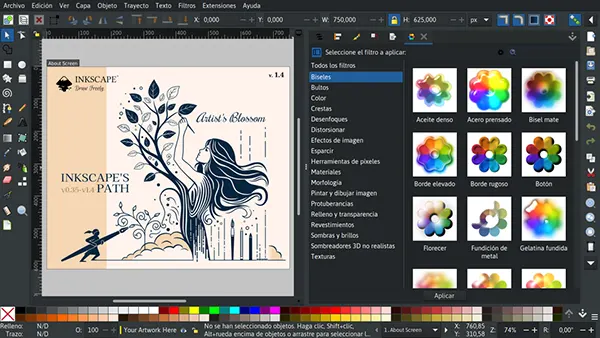
Photopea
Best for editing images in a browser and for people who want quick layered-design tasks.
Krita
Best for people who want a free, open-source platform for digital illustration, concept art, and painting.
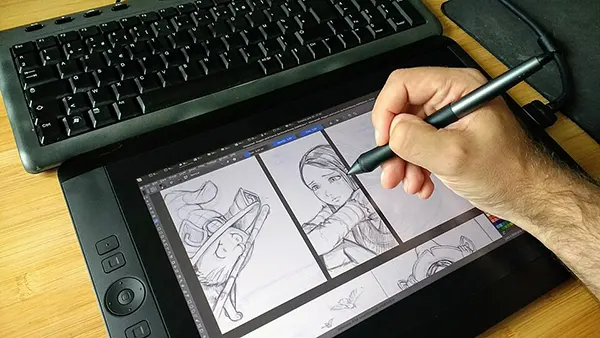
Free App Comparison Table
| App | Free access | Main limitation to check | Watermarks and exports | Commercial use |
| Canva | Yes (with paid features) | Premium assets and features may be restricted | Export options depend on the file | Check the license for each asset and intended use |
| Adobe express | Yes (with paid features) | Some content and tools require a paid plan | Confirm current export options and asset restrictions | Check the terms for included and third-party assets |
| Figma | Yes (with plan limits) | Collaboration, file, and team features may be limited | Check required file and export capabilities | Subject to current product and asset terms |
| GIMP | Free, open-source | Some specialized workflows may differ from commercial editors | Export options depend on the file and workflow | Software use is governed by its license; check third-party assets separately |
| Inkscape | Free, open-source | May require a learning period for precise vector work | Supports common vector and image export workflows | Software use is governed by its license; check third-party assets separately |
| Photopea | Browser-based access available | Some features or usage conditions may vary by plan | Confirm supported formats and export restrictions | Check the terms for the software and any assets used |
| Krita | Free, open-source | Not designed primarily for marketing based on templates | Supports common image formats; check project needs | Software use is governed by its license; check third-party assets separately |
Limits of Free Tools and When to Upgrade
Free tools are a good way to kickstart your learning and practice skills, but when you need premium features or assets, you can face some limitations and want to move towards paid plans or features. You can upgrade, but consider upgrading only when you have regular use of it; otherwise, upgrading would be a waste, and there’s no refund for not using it.
Best Graphic Design Apps for Mobile
Adobe Express and Photoshop Mobile
You can create promotional graphics, social posts, and things that can be made using templates. Best for people with quick editing needs.
Canva Mobile
A convenient choice for creating posts, stories, invitations, and presentations.
Procreate (iPad)
Built to create digital drawings and paintings on supported iPad devices.
Affinity on iPad
Android users can get the chance to create drawings and edit images with templates available.
Other Free Android Apps
There are many free apps for Android users where they can edit images or drawings, retouching with available templates.
Can You Do Professional Graphic Design on a Phone?
Absolutely, most of the projects can be done using a phone, whether it is simple social media graphics, basic photo edits, promotional posts, or a quick visual concept.
Best Online Graphic Design Tools
Browser-Based Editors
- Canva and Adobe Express (template-based use)
- Photopea (browser-based image editing)
- Figma (easy-to-use interface and collaborative product work)
Social Media Graphics Tools
- Canva and Adobe Express are the best options for social media because of their already available templates.
- Snappa can help you create images for special events.
- Another tool that helps you with print design is VistaCreate
- Or you can use any AI tool
Best AI Graphic Design Tools
There are so many AI tools now that work according to commands, and that’s where the quality of your images depends. AI can have both strengths and limitations, so decide which tool to use by comparing the following strengths and limitations.
| Can explore ideas quickly | Generated ideas may need some editing |
| Can speed up repetitive editing | Consistency in some things may be missing |
| Can be the starting points for layouts and visual concepts | May not meet the brand requirements |
| Useful for learners | Lacks originality and may cause licensing and usage issues |
Best Graphic Design Apps by Use Case
Logo Design
- Adobe Illustrator
- Inkscape
- Affinity designer
- CorelDRAW
Social Media Graphics
- Canva
- Adobe Express
Posters, Flyers and Print
- Adobe InDesign
- Affinity publisher
- Illustrator
- CorelDRAW
Branding and Brand Guidelines
Multiple tools may need to meet the branding requirements for better outcomes, including colors, typography, business cards, iconography, imagery, social media templates, and guidelines.
Illustration and Digital Art
- Krita
- Procreate
- Inkscape
- Illustrator and Affinity
UI and Web Design
- Figma
Best Graphic Design Apps for Beginners
Easiest Apps to Learn First
- Canva
- Inkscape
- GIMP
- Figma
Free Tutorials and Courses to Start
You can start with free tutorials from the internet via online courses or videos, depending on what you need to learn.
30-Day Learning Roadmap
- Days 1-7
Focus on learning the interface, basic shapes, layers, and exports. Apply what you learn by creating a simple poster layout.
- Days 8-14
Include typography, spacing, color, and alignment in your learning next. Apply by designing 3 social media posts.
- Days 15-21
Select the field, and if already selected, then improve your skills and learn tools in it. Create a logo concept, illustration, or website screen, whatever fits your field.
- Days 22-26
Be consistent, refine your work, and keep creating a small set of related designs for practice.
- Days 27-30
Keep reviewing your work and present it in your portfolio.
How to Choose the Right Graphic Design App
Budget, Platform and Skill Level
Choosing the right option depends on 3 things:-
- Decide how much you can spend: a free tool is good for occasional designing, but a proper tool is required for regular use.
- What platform do you have: a desktop or an iPad? Some tools depend on the device.
- Most importantly, your skills help you the most. A learner can use a beginner-friendly app, while advanced apps will be of your use when you have control over your skills and platforms.
Features to Look For
- Vector support
- Layer controls
- Templates
- Export formats
- Collaboration
- Typography controls
- Compatibility
- Commercial licensing
Decision Flowchart
With every step, ask yourself the following question and decide accordingly by comparing different tools based on what you need:-
- Step 1: What are you designing?
- Step 2: Do you need a free tool?
- Step 3: Do you need professional-level control?
- Step 4: Can it deliver the files you need?
Graphic Design Apps vs. Hiring a Designer
When DIY Apps Are Enough
When you have straightforward work or repeatable content to do, or when you are experimenting with your ideas.
When You Need a Professional
When your business is being presented, meaning when you need editable files, multiple versions, production-ready exports, or coordinated assets for different platforms.
What a Branding Agency Delivers That Apps Cannot
- Brand discovery & creative direction
- Audience and competitor research
- Original logo and visual identity concepts
- Typography and color system development
- Consistent graphics for print and digital use
- Brand guidelines and approved asset files
- Design revisions, feedback, and final handover
Get Professional Graphic Design from Pixifyo
At Pixifyo, we aim not only for attractive individual graphics but also for consistency in the visual identity of a brand, with everything working together across your website, marketing materials, and customer touchpoints.
Whether you want to design a logo, a print design, social media graphics, or you want service for your brand identity design. We cover it all to give you the smoothest and most realistic service possible, with more benefits on the way to come.
Click the link to learn more.
Final Verdict: Which App Should You Choose?
The best graphic design app in 2026 depends on your project, skills, and money.
- Beginners can use Canva for everyday graphics, which is an example of a sensible choice.
- Inkscape can be used for vector design for free
- Professional logos and vector graphics are best done with Adobe Illustrator, Affinity Designer, and CorelDRAW.
- For photo editing apps: Adobe Photoshop, GIMP, and Photopea should be mentioned.
- For print and publication: Adobe InDesign and Affinity Publisher should be considered.
- UI and web design can be solved with Figma, which is a good solution.
- For digital illustrations, Krita and Procreate should be used.
It is not necessary to purchase the costliest software in order to make good design. Choose one program that applies to your project and start by learning basic skills.
Frequently Asked Questions
What are the best graphic design apps?
Canva can be used for day-to-day graphic designs; Adobe Illustrator for logo designs and vector illustrations; Photoshop for editing photographs; and Figma for designing websites.
What is the best free graphic design app?
The use of Inkscape is recommended if you need a vector design program, while beginners will find Canva much easier to use.
What apps do graphic designers use?
Graphic designers may use Adobe Illustrator, Photoshop, InDesign, Figma, CorelDRAW, and Affinity tools based on the type of tasks they have to perform.
Which Adobe app is best for graphic design?
Adobe Illustrator is most suited for logos and vector graphics; Photoshop for photo editing and graphics, while InDesign is for brochures.
What is the best graphic design software for beginners?
Canva is a great place to begin due to its templates and user-friendly interface. Inkscape and Figma can be used by beginners for vector and UI design, respectively.
Can I use free graphic design apps for commercial work?
Yes, many free applications help with commercial projects; however, you should check the terms of the application software as well as the license of the font/images/templates/other elements used in your project.
Is Canva good enough for professional graphic design?
Absolutely, Canva is great for making graphics for social media and for presentations, but some vector art projects and printing projects can be more complicated.
What is the best graphic design app for iPad or Android?
Canva is great for creating basic graphics, whereas Procreate is highly recommended for digital illustrations on iPad. On Android, you can select an application based on your editing requirements.
Is Figma or Illustrator better for graphic design?
Figma can be used for web layout and interface design, while Illustrator is perfect for creating logos and icons.
Do I need to learn Photoshop to become a graphic designer?
Not necessarily; Photoshop is helpful, but not mandatory for all design jobs. You can stick to using Illustrator for vector graphics and Figma for UI/UX design.